
Watching your favorite shows on a big screen is easy when you know how to set up IPTV on your television. Most modern Smart TVs support different streaming apps, allowing you to watch live channels and other available content without connecting a cable box. The basic steps to setting up IPTV on a Smart TV typically include connecting the TV to the Internet, downloading and installing an appropriate IPTV player, and entering the subscription information. It varies depending on your TV brand and the apps that are available in your country or region.
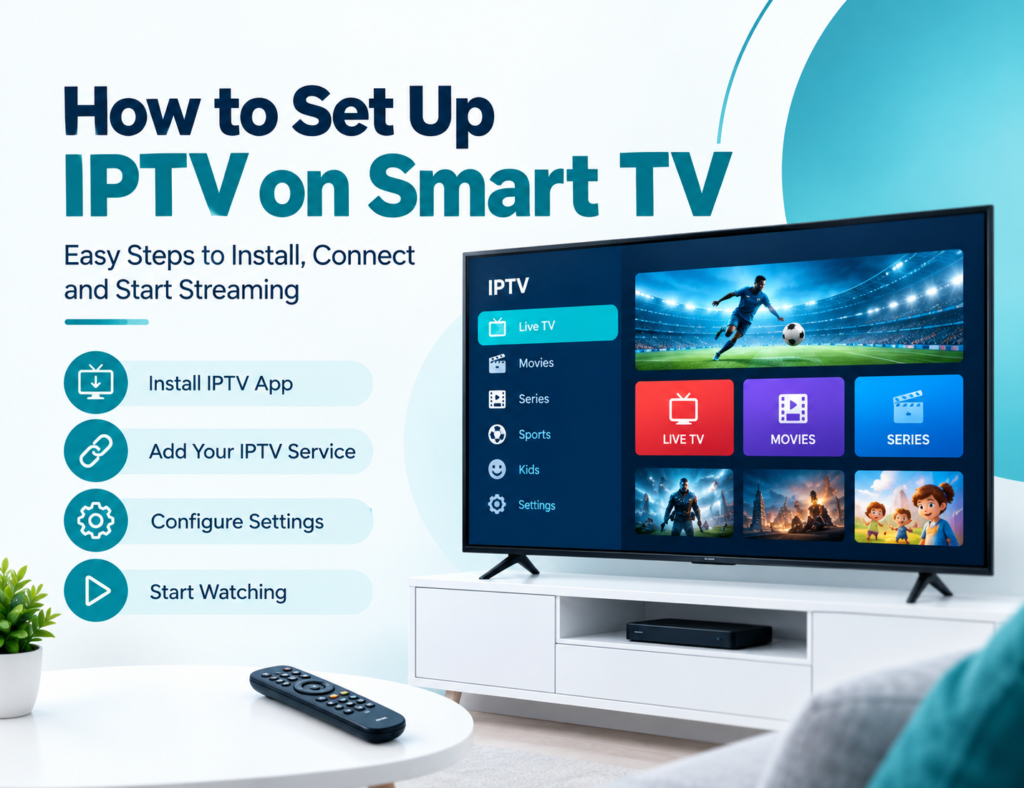
In this guide, we will explain the setup process step by step, describe various smart TV systems, and provide some tips on how to enjoy a smoother viewing experience.
Step 1: Connect Your Smart TV to the Internet
The first step is to make sure your television has a working internet connection. Go to the TV settings and search for Network or Internet. Select your Wi-Fi network and enter its password. If you have a router near the television, you can also connect it to the TV via an Ethernet cable. Once you have connected, open another application on your TV to see if the internet is working.
A stable connection minimizes buffering, loading delays and random interruptions. If your Wi-Fi signal is weak, move the router closer to the TV or consider using a wired connection.
Step 2: Find an IPTV App for Smart TV
Your next task is to choose an IPTV app for Smart TV that works with your device. An IPTV player is an application that loads and plays content from a compatible playlist or service. It does not automatically provide channels or a subscription. The applications might differ depending on the operating system of the TV brand.
| Smart TV brand or system | Where to look |
| Samsung | Samsung Apps or Smart Hub |
| LG | LG Content Store |
| Android TV | Google Play Store |
| Google TV | Apps section or Google Play |
| Other Smart TVs | The manufacturer’s official app store |
Some users like to use IPTV Smarters, Smart IPTV, or any other player that is compatible. But availability and features may vary depending on model, country and software version. Always review the official details of the app before you install it.
Step 3: Install IPTV Player
After choosing an app that is compatible, you can install it directly to your TV.
Follow these general instructions:
- Press the Home button on your remote.
- Open the app store for your TV.
- Search for your chosen IPTV player.
- Select the app and review its details.
- Choose Install or Download, if available.
- Once the installation is complete, open the app.
This is a guide on how to install IPTV on Smart TV via the standard app-store approach. If you don’t find the app you want, see if there is an update for the TV software. You can also look for another player that supports your television and subscription format. Do not assume that an Android application will work on every Smart TV. Samsung and LG televisions, for example, use different systems from Android TV.
Step 4: Add Your IPTV Subscription Details
After opening the player, you may see an option to add a playlist, log in, or connect a service. The information required depends on the app and your provider. Common options include:
Option A: Username and password
Some players ask for a user name, password and Server URL. Fill in the information as provided by your provider.
Option B: M3U playlist
Other players accept an M3U playlist URL. Click on the full link and copy and paste it into the appropriate field. Check that you have not missed any characters.
Option C: Device activation
Certain apps require activation through their official website. They may display a device ID or MAC address that you need to enter on the activation page.
Follow the instructions provided by the app developer. Don’t give an unknown site your subscription password or activation information. Once the information is accepted, the player can begin loading the available channels, programme guide, movies, or series.
Step 5: Test Your IPTV Connection
Once the playlist has loaded, open a channel and let it play for a few minutes. Try more than one channel to check whether the service is working properly. If there are no repeating interruptions in loading, your IPTV setup on Smart TV is almost finished. You can also dive into app settings and change language, programme guide, subtitles or other features. Keep in mind that not all features will be available to all players. The options you see will depend on your TV, app, and subscription.
Can You Use IPTV on an Older Television?
Yes, in some cases. If your television does not support a suitable IPTV player, you may be able to connect a compatible streaming device or TV box through an HDMI port. This option can provide access to a different app store and may be easier than replacing your television. Before purchasing more equipment, verify its operating system, app compatibility and connection requirements.
Conclusion
The process of setting up IPTV on Smart TV can be easy if it is done correctly. First, you need to link your TV to the internet, find a player that is compatible, and install it from a legitimate source, then carefully input your subscription details. If you experience problems, check the network, login details, and app compatibility before making major changes. You can watch supported content on your TV without too much hassle by setting it up correctly and using a trusted and properly licensed TV service. If you are looking into reseller options, you can also visit Jio TV Panel to know about Jio TV Panel features and subscription management.